Understanding the KeepKey PIN
A PIN is the first thing standing between an attacker holding your KeepKey and your funds. KeepKey's PIN entry uses a scrambled keypad displayed only on the device — not on your computer — which makes the entire class of "watch the screen and steal the PIN" attacks structurally impossible.
This guide explains why the design is shaped that way, how to set and use a PIN in KeepKey Desktop, and the tradeoffs to think about when you pick one.
What the PIN actually protects
The PIN protects the device against unauthorized physical use. It is the gate that has to be passed before anything — sending, receiving address derivation, settings changes — can be performed on the KeepKey.
It does not protect your seed phrase. If someone has your recovery phrase, the PIN is irrelevant: they don't need the device. Conversely, if someone has the device but no PIN and no seed, they will eventually be locked out by the device's wipe-on-too-many-failures behavior. Two layers, two threats — don't conflate them.
Why the keypad is scrambled
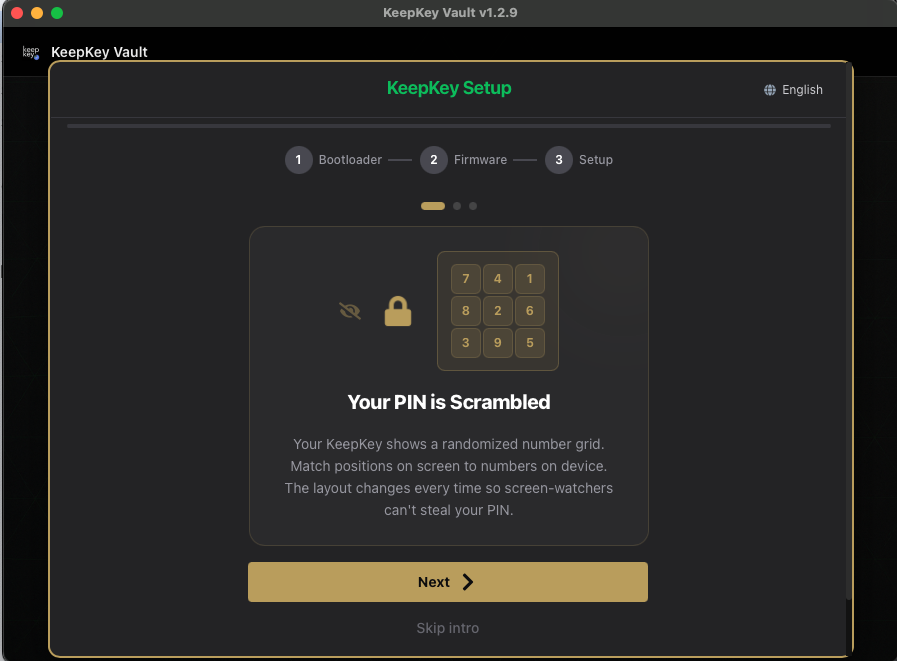
Traditional PIN entry on a phone or laptop has a critical weakness: the digits are in the same place every time. If an attacker watches you type 1234 once — over your shoulder, via a screen recording, through host-side keylogger malware, or just by reading the keyboard wear pattern — they have your PIN.
KeepKey defeats that by displaying a randomized 3×3 grid on the device's screen:
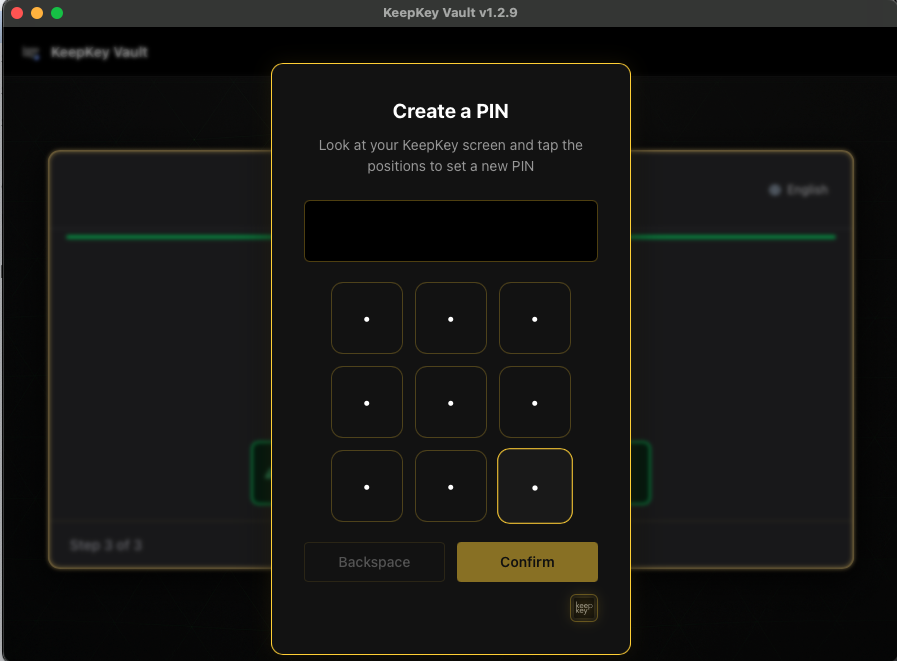
In KeepKey Desktop you see a blank 3×3 grid in the same layout. You click positions, not digits. The desktop app — and anything watching it — only ever sees a sequence of grid positions.
The next time you unlock, the digits are in different positions. The same sequence of clicks means something completely different. An attacker who recorded one PIN-entry session learns nothing useful for the next session.
That's the entire point: the secret never leaves the KeepKey screen. The desktop app is treated as untrusted — by design.
Setting a PIN
You set a PIN once, during initial onboarding (or after a device wipe + recovery). KeepKey Desktop walks you through it:
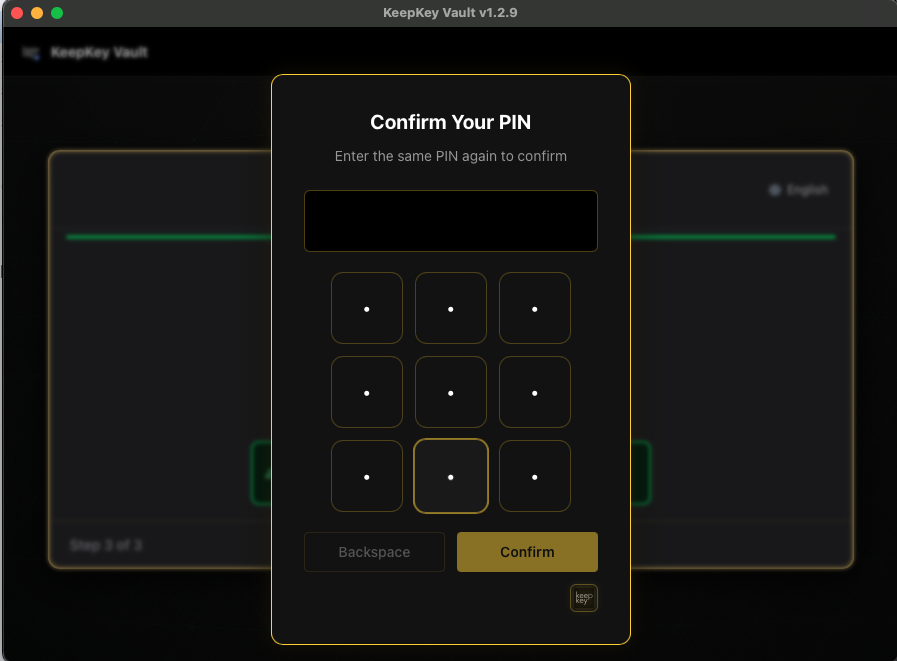
You'll be prompted twice — once to set the PIN, once to confirm — and the grid reshuffles between the two prompts:
If the two entries don't match, you start over. (The device doesn't tell anyone what either entry was — it just compares hashes internally and rejects if they differ.)
Unlocking with your PIN
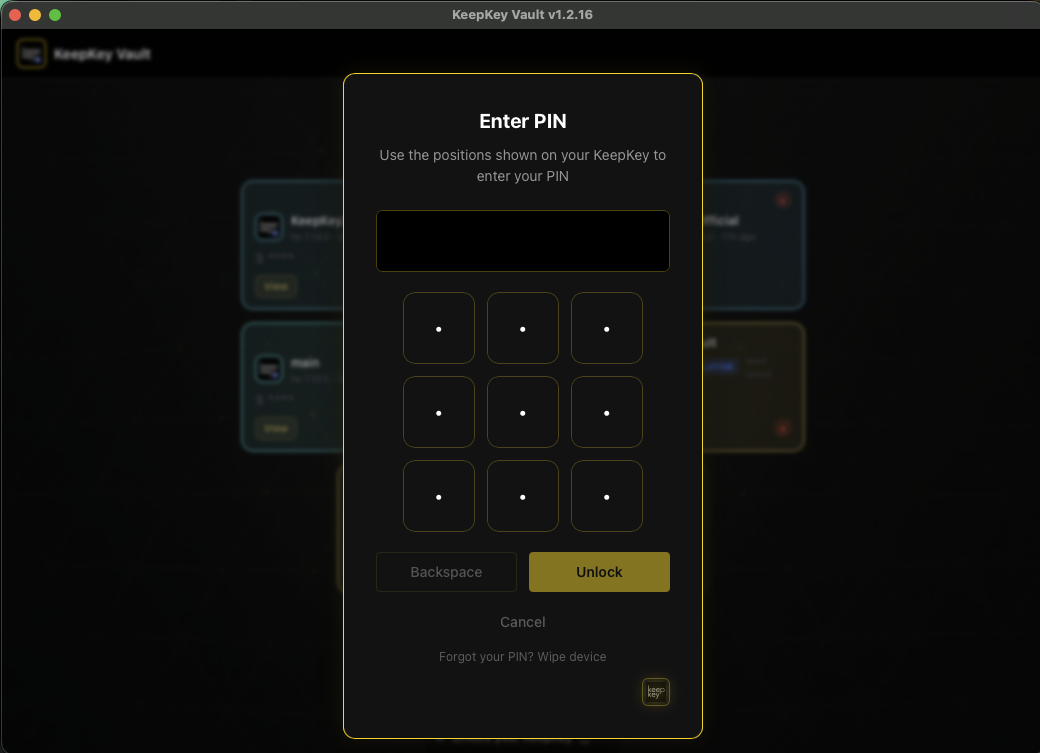
Every time you connect a configured KeepKey to KeepKey Desktop, you'll see this:
Glance at the device, find the digit positions, click them in the desktop app, hit submit. The wallet unlocks and your portfolio loads.
If you forget your PIN, the desktop app has a "Forgot your PIN?" flow that wipes the device and lets you restore from your recovery phrase. See How to Wipe Your KeepKey for details — and Device Recovery for the restoration step.
Choosing a PIN
The KeepKey accepts PINs from 1 to 9 digits. The device will only honor the first 9 digits if you try to enter more.
Practical guidance:
- At least 4 digits. Short PINs are vulnerable to brute-force if an attacker has prolonged physical access. The device wipes itself after too many wrong entries, but multi-digit PINs raise the cost dramatically per attempt.
- Avoid
1234, 0000, your birthday, your house number. The "obvious bad PINs" set is small and well-known.
- Pick something you can remember. A PIN you can't recall isn't a security feature — it's a self-inflicted ransom for your funds.
There's no security advantage to using your full 9 digits if you can't enter it reliably. Treat it like the security it is: rate-limited, scrambled-input, recoverable-via-seed-after-wipe. A solid 4–6 digit PIN you'll never forget beats a 9-digit one you have to look up.
Changing the PIN
From Settings → Security → Change PIN in KeepKey Desktop. You'll be asked for the current PIN, then prompted to set a new one (with the same confirm-twice flow). The scrambled grid still applies — there's no way to change the PIN in plaintext.
Removing the PIN
You can remove the PIN entirely. Don't. A KeepKey without a PIN has zero protection against physical theft — anyone who picks it up can sign transactions and drain your wallet. The only legitimate reason to remove the PIN is to immediately set a new one in a context where the change-PIN flow won't work for some reason; "I find the PIN annoying" is not a legitimate reason.
If you really want to, the option lives at Settings → Security → Change PIN with a "Remove PIN" choice in the flow.
A note on display anti-malware
The on-device PIN display intentionally inverts each digit twice — making the count of lit pixels constant regardless of which digits are shown. This defeats a niche class of malware that tried to infer PIN digits by analyzing power draw or USB resistance during the scramble. It's not a threat most users will ever face, but it's the kind of detail that exemplifies the design philosophy: assume the host is malicious, keep all secrets and security-critical visuals on the device.
Related
Never share your PIN or recovery phrase with anyone. Real support staff will not ask for either, ever.