ProductsAppsFor Business

Coins

Support

Blog

Docs

Introducing the new KeepKey Client

Follow the guide below to get started using your KeepKey.

Other platforms:

Free & Open Source

No Registration Required

Watch the complete setup guide

Setup Your KeepKey

Follow these steps to get your KeepKey hardware wallet up and running in minutes

1. Download the latest KeepKey Client

  • Select the appropriate download for your OS.
  • Note: (Linux users) usb drivers: Update your Udev rules
  • Note: (Linux users) you may need to chmod your download file to run the application and connect via USB
  • Note: (Windows users) you may need to continue past unsafe download errors
Step undefined illustration

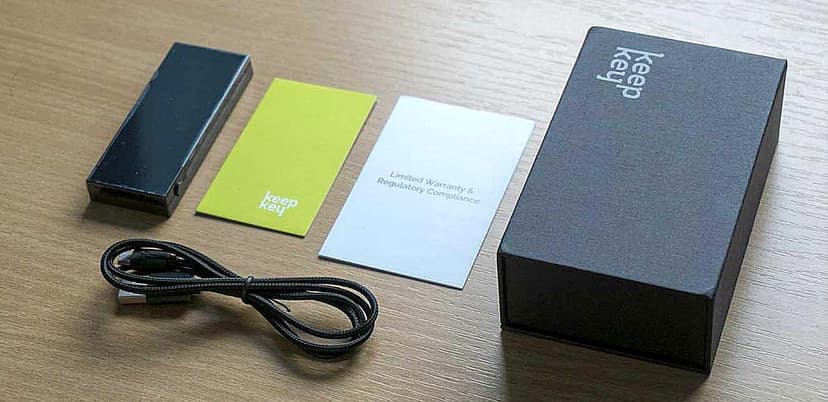
2. Unbox your device

  • Prepare your materials for mnemonic recovery phrase storage
Step undefined illustration

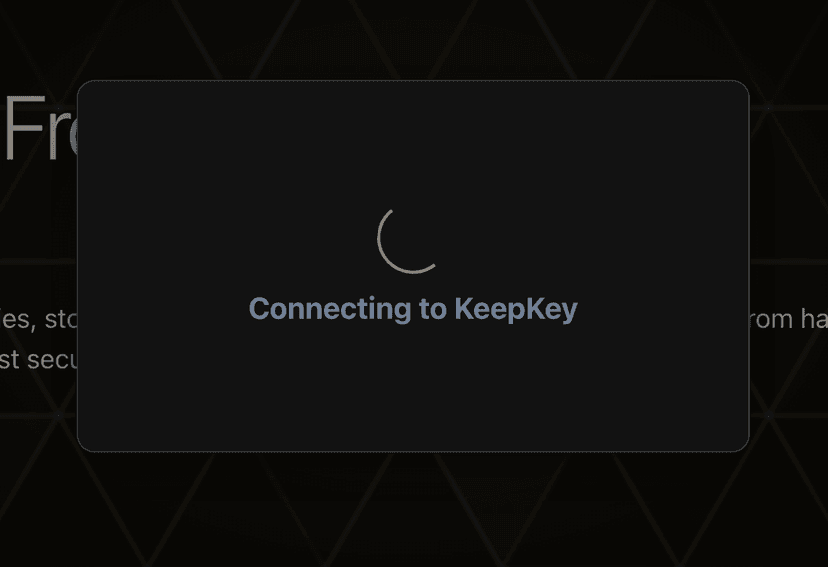
3. Connect your Device

  • Connect your KeepKey to your computer
Step undefined illustration

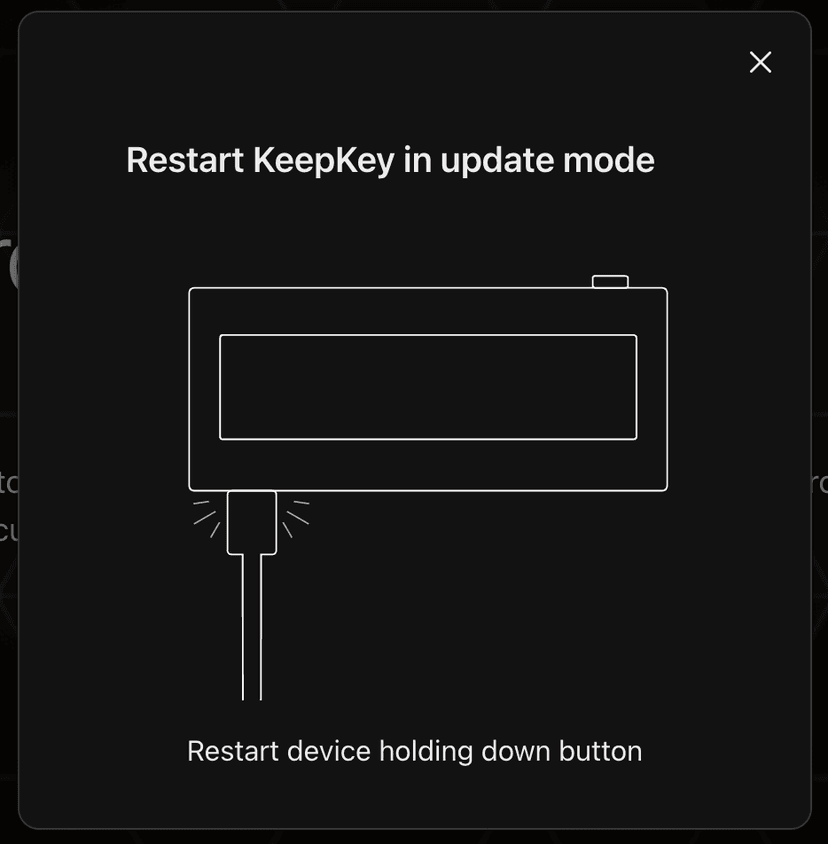
4. Enter Updater Mode

  • Unplug Device
  • Hold Down Button on KeepKey
  • Plug Device back in
Step undefined illustration

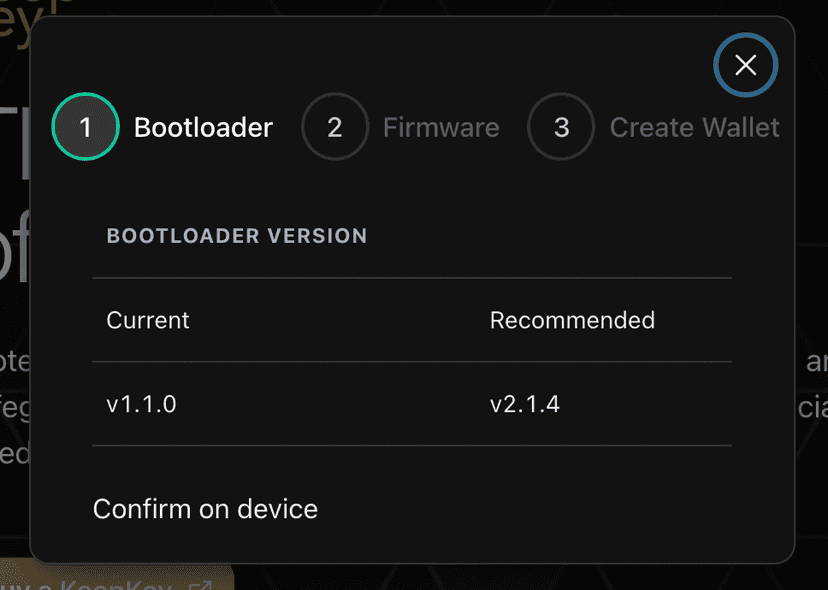
5. Update your Devices Bootloader

  • Do NOT unplug your KeepKey while uploading!
  • You will be prompted to unplug and reconnect your device
  • Do not disconnect your device until prompted to do so on device
Step undefined illustration

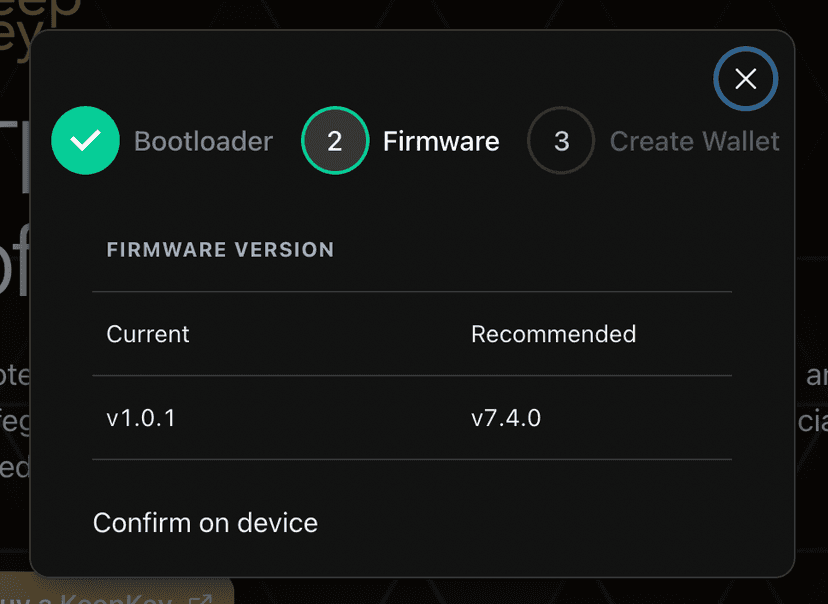
6. Update Your Devices Firmware

  • The Latest Firmware is required to use the platform
Step undefined illustration

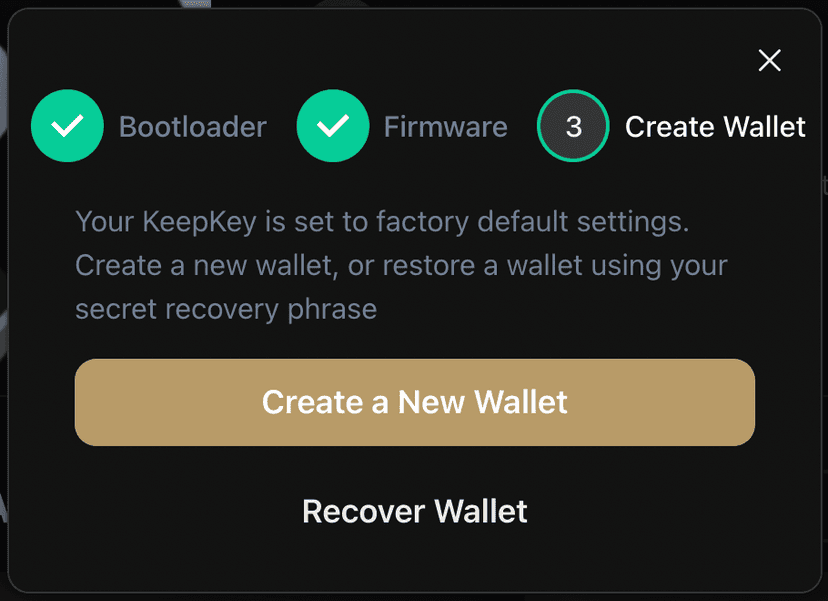
7. Create your Wallet

  • Initialize your wallet by generating a new Mnemonic recovery phrase
Step undefined illustration

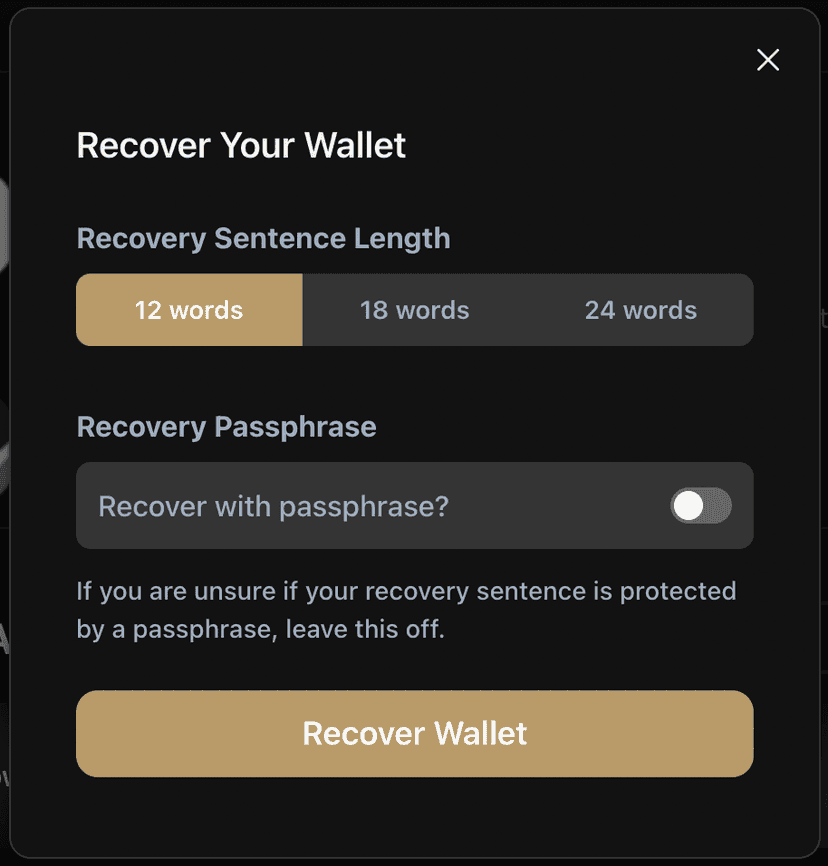
8. (Optional) Restore your Wallet using a Mnemonic recovery phrase

  • You will be prompted to use a cipher to enter text via your keyboard
  • Never enter your Mnemonic recovery phrase in an application without using a cipher
  • Any application asking to enter a Mnemonic recovery phrase without a cipher is a scam!
Step undefined illustration

Need Help?

Still unable to connect? Check out our troubleshooting guide

Get Started - Download KeepKey Desktop | Complete Setup Guide | KeepKey Hardware Wallet